TikTok LIVE Studio APK Free Download For Android
Today
3.80 MB
V41.9.5
Android 5+
954
Description
Want to stream on TikTok using your computer instead of relying entirely on your smartphone? TikTok Live Studio provides a desktop broadcasting environment that helps creators turn their PCs into streaming setups.
TikTok LIVE Studio is TikTok’s desktop livestreaming application for eligible creators. It allows users to broadcast compatible screen content, PC games, webcam video, and audio directly to their TikTok audiences. The software is particularly useful for gaming creators, educators, tutorial publishers, and people who prefer a larger screen and more control over their broadcasts.
Unlike a basic mobile livestream, a desktop setup can combine multiple content sources. For example, a gaming creator can display gameplay, position a webcam in the corner, configure a microphone, and monitor viewer comments while broadcasting. TikTok’s creator tools have different purposes, so it is also important to distinguish LIVE Studio from TikTok Studio, which focuses on broader creator activities.
This guide explains how the software works, where to download it, what equipment you need, how to configure your first stream, and how to troubleshoot common problems. It also compares LIVE Studio with OBS Studio to help you choose the right broadcasting solution.
What Are the Main Features of TikTok Live Studio?
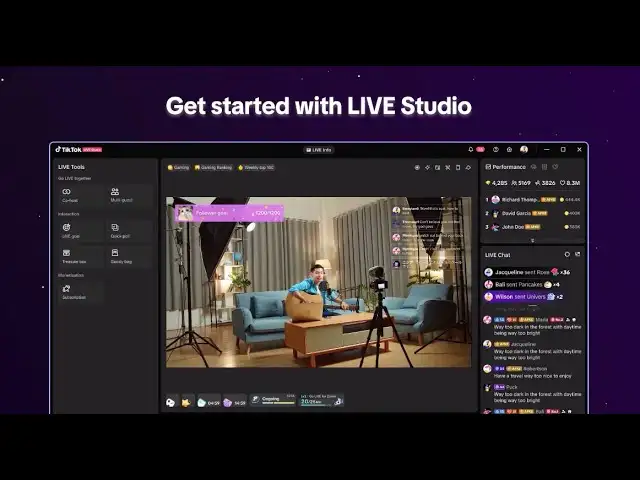
The main advantage of LIVE Studio is that it brings several broadcasting tools into a single desktop workspace. Instead of switching between different applications for every task, creators can organize their video, audio, and presentation elements before starting a broadcast.
Here are the most useful features.
Screen Capture and Desktop Sharing
Screen capture allows creators to show selected desktop content to their TikTok audience.
It is especially useful for people who create educational content, software demonstrations, tutorials, and presentations.
For example, a technology creator can demonstrate how to use an application while explaining each step through a microphone.
Before sharing your screen, close private documents, browser tabs, and notifications that should not appear in public.
Game Capture for PC Gaming
Game capture is particularly valuable for creators who want to broadcast computer games. Rather than recording the entire monitor with an external camera, creators can use the supported capture options to display gameplay directly.
Typical uses include:
- PC gaming livestreams.
- Live gaming tutorials.
- Multiplayer gameplay.
- Gaming challenges.
- Interactive entertainment sessions.
If a particular game does not appear correctly, try another supported capture method, such as window capture or display capture.
Webcam and Camera Integration
LIVE Studio supports camera sources that allow creators to include their faces in broadcasts. This is useful for gaming commentary, interviews, educational presentations, and personality-driven content.
Depending on the connected camera, available configuration options may include:
- Camera selection.
- Video resolution.
- Frame rate.
- Exposure.
- White balance.
- Contrast and saturation.
- Image adjustments.
TikTok’s setup guidance recommends keeping camera resolution and frame rate at or below the selected LIVE output quality. This avoids unnecessary processing overhead.
Microphone and Audio Mixer
- Audio quality is one of the most important parts of a livestream.
- A creator may have excellent video quality, but poor sound can make viewers leave quickly.
- LIVE Studio provides audio configuration options for compatible input devices.
Creators can use:
- Built-in laptop microphones.
- USB microphones.
- Compatible external audio devices.
- Supported headset microphones.
My recommendation: Perform an audio test before every important broadcast. Listen to the actual microphone output rather than assuming that a moving audio meter means everything sounds correct.
Scenes and Sources
Scenes and sources help creators organize their broadcast layouts.
A scene is the complete visual arrangement shown to viewers. A source is an individual element placed inside that arrangement.
For example, a gaming scene might include:
- Game capture.
- Webcam.
- Microphone.
- Text overlay.
- Additional supported visual elements.
- You can prepare different scenes for different parts of a broadcast.
Available scene layouts
Current setup guidance describes three layout types:
| Layout | Best use |
| Portrait | Vertical camera content and mobile-first presentations |
| Landscape | Widescreen gaming and desktop demonstrations |
| Dual layout | Combining supported portrait and landscape presentations |
One useful detail is that mobile preview support can vary by layout. TikTok’s current guidance documents limitations for dual-layout mobile previews.
iTechGuides
Text and Visual Elements
Text and other visual sources help make a broadcast easier to understand.
Creators can use these elements to display:
- Stream titles.
- Welcome messages.
- Important instructions.
- Social media information.
- Gameplay labels.
- Presentation headings.
Keep visual elements readable. Too many overlays can make a livestream look cluttered, especially on mobile screens.
LIVE Chat and Audience Interaction
TikTok LIVE Studio App is designed around real-time communication between creators and viewers.
Depending on account access and regional availability, the LIVE experience may include:
- Viewer comments.
- Audience engagement.
- LIVE moderators.
- Virtual Gifts.
- Other interactive features.
Moderation is important when a broadcast attracts a large audience. Creators should review comment settings and use available moderation tools to maintain a welcoming environment.
Stream Monitoring and Preview
A good creator checks the broadcast before making it public.
LIVE Studio provides monitoring and preview tools that can help identify technical problems.
Pay attention to:
- CPU usage.
- Memory usage.
- Network conditions.
- Frame rate.
- Dropped frames.
- Audio levels.
These indicators are more useful than simply assuming that the stream is working because the preview appears on screen.
TikTok Live Studio System Requirements
Before downloading the application, make sure your computer is compatible.
TikTok’s current installation guidance identifies Windows 10 or later for the documented Windows setup. Always check the official download page for the operating systems and installers currently offered to your account.
Hardware Requirements
The actual performance requirements depend on what you intend to broadcast.
A simple webcam presentation requires fewer resources than streaming a demanding PC game while using several video sources.
| Computer component | What you should consider |
| Processor | A modern multi-core CPU |
| RAM | Enough memory for LIVE Studio and other running applications |
| Graphics card | Compatible graphics hardware for video processing |
| Storage | Sufficient free disk space for installation |
| Internet | Stable upload connection |
| Webcam | Optional, depending on content |
| Microphone | Recommended for spoken broadcasts |
These are practical recommendations, not official minimum specifications published by TikTok.
Can TikTok Live Studio Run on a Low-End PC?
It may work on a modest computer, depending on its hardware and the complexity of your broadcast.
For a lower-powered system, try these adjustments:
- Use a lower streaming resolution.
- Start with 30 FPS.
- Close unnecessary applications.
- Reduce demanding game graphics settings.
- Avoid adding unnecessary visual sources.
- Use a stable internet connection.
Do not assume that choosing the highest video quality will improve your stream. If your computer cannot process it consistently, the broadcast may become choppy.
How Much Internet Speed Do You Need?
There is no single upload-speed figure that guarantees a smooth broadcast for every setup.
Your requirements depend on resolution, frame rate, bitrate, and connection stability. A useful approach is to test your upload speed before going LIVE and leave enough spare capacity for network fluctuations.
For more consistent performance:
- Prefer Ethernet over Wi-Fi.
- Pause large uploads and downloads.
- Avoid unnecessary network-intensive applications.
- Test the connection at the time you normally stream.
Does TikTok Live Studio Work on Mac?
Do not assume that every third-party website offering a Mac installer is distributing an official version. TikTok’s documented Windows installation guidance specifies Windows 10 or later. Check the official download page for any newer operating-system support before installing software.
For Mac users, OBS Studio is an established alternative for general-purpose desktop broadcasting, although connecting it directly to TikTok depends on the LIVE access and connection methods available to the account.
How to Download TikTok Live Studio for PC?
Downloading the correct installer is the first step toward setting up desktop broadcasting.
For security, use TikTok’s official website instead of third-party download portals.
1: Open the official download page
- Visit the official TikTok LIVE Studio page
- Find the available LIVE Studio download option and check its operating-system compatibility.
2: Select the available installer
- Choose the supported installer displayed for your computer.
- If LIVE Studio is not offered for your account or region, do not substitute a modified installer from an unknown website.
3: Save the installation file
- Allow the download to finish.
- Keep the file in your Downloads folder or another location where you can easily find it.
4: Verify the download source
- Before opening the installer, check that it was obtained from TikTok’s official website.
- Be cautious of websites that request your TikTok password, verification code, or payment details in exchange for software access.
- Step 5: Run the installer
- Open the downloaded installation file and follow the instructions displayed by Windows.
- Allow the installation process to finish.
6: Launch the application
- Open LIVE Studio from the Windows Start menu or desktop shortcut.
- You can now proceed to account sign-in and the initial configuration.
- Official download recommended
- Always use the official TikTok download destination for the latest supported release.
How to Install and Set Up TikTok Live Studio APK?
After downloading the application, you need to connect your account and prepare your broadcasting environment.
The initial configuration is important because it determines how your video and audio sources appear during a LIVE session.
1: Open LIVE Studio
- Launch the application after installation.
- You should see the available sign-in interface.
2: Sign in to TikTok
- Use the login method provided by the application.
- Make sure you connect the account you actually intend to use for livestreaming.
- If you manage multiple TikTok accounts, double-check the username before continuing.
3: Complete the initial setup
Follow the setup wizard.
Depending on the application version, you may be asked to select:
- Your LIVE content type.
- Camera and microphone devices.
- Video quality.
- Scene layout.
- If you are new to desktop broadcasting, the standard setup option is a sensible starting point.
4: Select your camera
- Connect your webcam if you intend to appear on screen.
- Open the camera source settings and select the correct device.
- Check the preview before continuing.
- If the camera is not detected, close other applications that may be using it and check Windows camera permissions.
5: Configure your microphone
- Select your preferred audio input.
- Speak into the microphone and check its input level.
- If the application offers an audio test, use it to listen for:
- Low volume.
- Background noise.
- Echo.
- Distortion.
- Incorrect microphone selection.
Step 6: Choose a scene layout
Select the layout that matches your content.
For example:
- Choose Portrait for vertical camera presentations.
- Choose Landscape for widescreen desktop demonstrations.
- Choose Dual when its supported combined presentation is useful.
7: Add your sources
- Add the content elements required for your broadcast.
- A basic gaming setup may contain game capture, webcam, and microphone sources.
- A tutorial setup may only need a screen capture, microphone, and text heading.
8: Review the complete preview
- Before going LIVE, check how your presentation looks.
- Make sure that important text is readable and that the camera does not cover essential content.
9: Start your broadcast
Once the setup is ready:
- Select the correct scene.
- Check the microphone.
- Verify the camera and capture source.
- Review the LIVE title and other available details.
- Check system-monitoring indicators.
- Select the available LIVE control to begin broadcasting.
- Your desktop broadcast can now reach your TikTok audience, provided your account has the required access.
How to Stream PC Games Using TikTok Live Studio 2026?
Gaming creators often prefer desktop broadcasting because it allows them to show gameplay and communicate with viewers at the same time.
A well-arranged gaming stream should keep the gameplay visible while making the creator’s commentary easy to hear.
1: Launch your game
- Open the game you want to broadcast.
- Make sure it is running properly before configuring the capture source.
2: Create a gaming scene
- Open LIVE Studio and create a new scene for gaming.
- Choose a layout suitable for the way you want to present your content.
3: Add game capture
- Select the available game capture source.
- Choose the correct running game and inspect the preview.
- If the capture source shows a black screen, try window capture or display capture where available.
4: Add your webcam
- Add your camera source and position it appropriately.
- Avoid placing it over important gameplay information.
5: Configure the microphone
- Choose the correct audio input.
- Speak normally and make sure the microphone can be heard clearly.
- If you are broadcasting gameplay, balance your commentary and game audio so neither overwhelms the other.
6: Optimize the stream
- Check the system indicators and adjust quality settings according to your computer’s capabilities.
- A stable stream is more important than forcing high resolution or frame rate.
7: Preview and go LIVE
- Review your layout from a mobile viewer’s perspective where the preview option supports it.
- Check your title, audio, gameplay, and camera.
- When everything is ready, start the broadcast.
Best gaming layout tips
- Keep the main gameplay area visible.
- Position the webcam away from important game information.
- Use readable text overlays.
- Avoid unnecessary visual effects.
- Keep the microphone close enough for clear commentary.
- Prepare a separate starting and ending scene.
Best TikTok Live Studio Settings for Smooth Streaming
There is no universal setting that works perfectly for every computer.
The best configuration depends on the hardware, internet connection, and content being broadcast.
Here is a practical starting point.
| Setting | Suggested starting approach |
| Resolution | Start with 720p if unsure |
| Frame rate | 30 FPS for general content |
| Gaming frame rate | Consider 60 FPS if hardware supports it |
| Camera quality | Match or stay below LIVE output |
| Audio | Test microphone and game volume |
| Internet | Use stable Ethernet where possible |
| Background applications | Close unnecessary programs |
These are general starting suggestions, not guaranteed TikTok presets.
Choose the Right Resolution
- Resolution determines how much visual detail appears in the broadcast.
- Higher resolutions require more processing power and network capacity.
- If your computer experiences performance problems at 1080p, try a lower setting.
Select an Appropriate Frame Rate
- Frame rate describes how smoothly movement appears.
- 30 FPS is often suitable for talking, tutorials, and presentations.
- 60 FPS can provide smoother movement for fast gameplay.
- Use the higher frame rate only when your system can maintain it consistently.
Balance Audio Levels
- The microphone should remain understandable when game or desktop audio is playing.
- Avoid excessive microphone gain because it can introduce distortion and unwanted background noise.
Keep the Scene Simple
- A scene containing too many unnecessary sources can become difficult to manage.
- Start with the elements you actually need and add additional sources only when they improve the presentation.
TikTok Live Studio vs OBS Studio vs Streamlabs
TikTok LIVE Studio Download is not the only option for desktop broadcasting.
Creators also use applications such as OBS Studio and Streamlabs. However, each tool has a different purpose and learning curve.
| Feature | TikTok LIVE Studio | OBS Studio | Streamlabs |
| Main purpose | TikTok broadcasting | General broadcasting and recording | Creator-focused streaming |
| TikTok integration | Native platform workflow | Depends on supported connection method | Depends on available integration |
| Scene customization | Available | Extensive | Available |
| Screen capture | Available | Available | Available |
| Webcam support | Available | Available | Available |
| Audio controls | Available | Advanced | Available |
| Multi-platform workflow | TikTok-focused | Broad platform support | Broad platform support |
| Best for | TikTok creators | Advanced users | Creators wanting integrated tools |
OBS Studio is free and open-source, supports Windows, macOS, and Linux, and offers extensive scene, source, audio, and production controls.
Which streaming software should beginners choose?
Choose TikTok LIVE Studio if:
- You mainly stream on TikTok.
- You want a TikTok-focused desktop environment.
- You prefer an integrated workflow.
- You are learning desktop broadcasting.
- Choose OBS Studio if:
- You want more advanced scene customization.
- You record and broadcast content across platforms.
- You need detailed audio filters.
- You are comfortable configuring streaming connections.
- Choose Streamlabs if:
- You prefer an integrated creator-oriented interface.
- You want to explore additional streaming tools.
- Its supported integrations fit your workflow.
Can you use OBS Studio with TikTok?
- Potentially, yes, but the connection depends on what TikTok provides to your account.
- Some creators may have access to supported streaming connection details, while others may not.
- Do not assume that every TikTok account has a stream key or that installing OBS automatically enables TikTok broadcasting.
TikTok Live Studio Access and Eligibility
One of the most confusing aspects of desktop broadcasting is the difference between downloading LIVE Studio and receiving permission to use it.
These are separate things.
TikTok has general eligibility requirements for hosting a LIVE, but LIVE Studio may have additional account-access conditions.
General TikTok LIVE requirements
TikTok’s published general guidance includes:
- Creators must be at least 18 years old to host a LIVE.
- The standard follower requirement is generally 1,000 followers, although regional variations apply.
- LIVE access depends on the account meeting TikTok’s requirements.
- LIVE availability can differ by location.
- These are platform-level eligibility guidelines, not a guarantee of LIVE Studio access.
- TikTok Support+1
How to check your account eligibility
- Open TikTok on your phone.
- Sign in to your account.
- Select the Create (+) button.
- Look for the LIVE option.
- Check whether you can access the LIVE setup.
- Follow any additional instructions displayed by TikTok.
- You should also review the access information shown inside LIVE Studio.
Why can I download LIVE Studio but not broadcast?
This usually means that installation and account authorization have not both been completed.
Other possible reasons include:
- Your account does not meet the relevant eligibility requirements.
- Desktop LIVE access is unavailable to your account.
- The feature is restricted in your region.
- Your account has an active restriction.
- TikTok requires additional verification.
- The most reliable information is the eligibility message shown by TikTok itself.
TikTok Live Studio Availability in Pakistan
- Creators in Pakistan may want to use desktop broadcasting for gaming, educational content, tutorials, and community livestreams.
- However, software availability and account eligibility should be checked separately.
- If you are using TikTok in Pakistan:
- Visit TikTok’s official download page.
- Check whether the application is offered for your device.
- Sign in using your regular TikTok account.
- Review your LIVE access status.
- Follow any additional eligibility instructions.
- Do not use unofficial APKs, modified desktop installers, or third-party services promising guaranteed LIVE access.
Important: I cannot confirm universal LIVE Studio access for every Pakistani account. TikTok’s own account-specific availability and eligibility messages should take priority over generic claims on download websites.
Common TikTok Live Studio Problems and How to Fix Them
Even after successful installation, creators can experience technical issues. Most problems relate to account permissions, device configuration, capture sources, or computer performance.
The following solutions provide a practical troubleshooting starting point.
TikTok Live Studio Is Not Opening
Possible causes:
- Incomplete installation.
- Unsupported Windows environment.
- Outdated system components.
- Application conflicts.
- Corrupted installation files.
Solutions:
- Restart your computer.
- Check for pending Windows updates.
- Close unnecessary applications.
- Run the official installer again if needed.
- Reinstall the software using TikTok’s official download source.
- Avoid downloading replacement DLL files or modified application packages from unknown websites.
TikTok Live Studio Shows a Black Screen
A black screen usually means the selected capture source is not displaying the intended content.
Try these steps:
- Check whether the correct game or application is running.
- Open the relevant scene.
- Review the selected capture source.
- Try another available capture method.
- Restart LIVE Studio.
- Check whether the application being captured restricts screen recording.
- If the problem happens only with one game, the issue may be related to how that game handles display capture.
Camera Is Not Working
If your webcam does not appear, check the device connection and Windows privacy settings.
Possible solutions:
- Disconnect and reconnect the camera.
- Close video conferencing applications.
- Check camera permissions in Windows.
- Select the correct camera source.
- Restart LIVE Studio.
- Check whether another application is controlling the camera.
- If your webcam supports different resolutions, select a setting compatible with your broadcast quality.
Microphone Is Not Working
A microphone problem can make an otherwise good broadcast difficult to watch.
Try the following:
- Check the microphone connection.
- Open LIVE Studio’s audio settings.
- Select the correct input device.
- Check Windows microphone permissions.
- Adjust the input level.
- Perform an audio test.
- If viewers hear an echo, check whether audio monitoring is playing through speakers near the microphone.
TikTok Live Studio Is Lagging
Lag can result from insufficient processing capacity or an unstable network connection.
| Possible cause | Recommended action |
| High CPU usage | Close unnecessary programs |
| High GPU usage | Reduce demanding game settings |
| Insufficient RAM | Close unused applications |
| Network instability | Use a wired connection |
| Excessive video quality | Reduce resolution |
| Too many sources | Simplify your scene |
| Frame drops | Lower frame rate or output quality |
Use LIVE Studio’s monitoring indicators to identify whether the problem is related to CPU, memory, network, or dropped frames.
TikTok LIVE Access Is Unavailable
- Installing LIVE Studio does not automatically provide permission to broadcast.
- Check whether your account can host a LIVE through the TikTok mobile application.
- If you are eligible but still cannot access the feature, use TikTok’s in-app reporting process.
Audio and Video Are Out of Sync
Audio delays can make conversations and gameplay commentary feel unnatural.
Possible solutions include:
- Check the selected audio input.
- Restart the connected devices.
- Review audio monitoring settings.
- Reduce unnecessary processing.
- Test with a simpler scene.
- Check whether the problem occurs outside LIVE Studio.
- Change one setting at a time so you can identify which adjustment improves synchronization.
Myth vs. Fact: TikTok Live Studio Explained
There are several misconceptions surrounding TikTok’s desktop broadcasting application.
| Myth | Fact |
| Anyone can use LIVE Studio immediately. | Access depends on TikTok’s requirements and account permissions. |
| Downloading LIVE Studio unlocks LIVE. | Installation and broadcasting eligibility are separate. |
| LIVE Studio and TikTok Studio are identical. | They have different purposes and workflows. |
| You need an expensive gaming computer. | Hardware requirements depend on the type of broadcast. |
| 1080p is always better than 720p. | A stable, clear broadcast is more useful than a stream with frequent frame drops. |
| OBS is compulsory for TikTok gaming streams. | LIVE Studio provides its own desktop streaming environment. |
| Every creator has a TikTok stream key. | Connection options depend on account access. |
| More overlays make a stream professional. | A clean, readable layout is often more effective. |
Expert Streaming Tips: How to Make Your Broadcast Better
Installing streaming software is relatively straightforward. Building a broadcast that viewers can comfortably watch requires more preparation.
The difference usually comes down to the details.
Prioritize audio before visual effects
A clear microphone makes communication easier. You do not need an expensive recording studio to improve your sound.
Start with proper microphone placement, sensible input levels, and a quiet environment.
Design for mobile viewers
TikTok is primarily a mobile viewing platform, so desktop creators should consider how their content appears on smaller screens.
Keep important text readable and avoid placing essential visual information near the edges.
Prepare multiple scenes
Instead of building everything during a LIVE session, prepare your main layouts in advance.
A simple structure might include:
- Starting scene.
- Main content scene.
- Discussion or camera scene.
- Ending scene.
- This makes switching between different parts of a broadcast easier.
Keep the stream focused
Every source should serve a purpose.
If an overlay, animation, or visual effect does not help viewers understand the content, consider removing it.
Monitor the technical indicators
Do not wait for viewers to complain about lag or sound problems.
Check the application’s performance indicators during the broadcast and respond when you notice a problem.
Protect your privacy
Screen sharing can expose more information than creators realize.
Close private browser tabs, disable unnecessary notifications, and check the screen preview before broadcasting.
Statistical Proof and Current Product Information
A useful technical article should distinguish between verified specifications and general recommendations.
For TikTok LIVE Studio APK, the most relevant evidence comes from platform eligibility information, software documentation, and documented application capabilities.
| Information | Verified detail | Source |
| General LIVE age requirement | 18 years or older | TikTok Support |
| General follower requirement | Standard threshold of 1,000, with regional variation | TikTok guidance |
| Windows compatibility | Windows 10 or later in the documented installation guidance | LIVE Studio installation guidance |
| Scene organization | Scenes can combine multiple visual sources | LIVE Studio setup documentation |
| Scene source limit | Up to 20 sources per scene in the documented guidance | LIVE Studio basics |
| OBS availability | Windows, macOS, and Linux | OBS official website |
A note about statistics: TikTok does not provide a universal public performance benchmark that guarantees a particular resolution, bitrate, or computer specification will work for every LIVE Studio user. It is better to provide clearly labelled recommendations than to invent performance percentages or hardware requirements.
For a stronger publication, record the exact LIVE Studio version, operating system, hardware configuration, and date whenever you perform an original test.
EEAT: Building Trust Through Practical Experience
A good software guide should help readers understand not only what an application can do but also how to use it correctly. For TikTok Live Studio, trustworthy editorial coverage should be based on three things: accurate platform information, practical technical guidance, and transparent testing.
The most common beginner mistake is choosing maximum video quality before checking whether the computer and internet connection can maintain it. A better approach is to start with a stable configuration, test the microphone and camera, and then increase the output quality gradually.
Creators should also understand that account eligibility and software installation are separate matters. This distinction can save time and prevent users from downloading unofficial applications in an attempt to bypass restrictions.
Recommended author credibility statement
Use the following only if it accurately describes the person publishing the article:
Our technology guides focus on practical software information, installation instructions, and troubleshooting advice. We prioritize official download sources, current product documentation, and clear explanations so readers can make informed decisions before installing or using desktop applications.
For stronger first-hand evidence, add:
- Author’s real name and relevant technical background.
- Original screenshots from the installed application.
- The exact version tested.
- The Windows version used.
- A documented installation and streaming test.
- The date the information was last reviewed.
- Do not claim to have personally tested the application unless that testing actually took place.
Conclusion: Should You Use TikTok Live Studio in 2026?
TikTok Live Studio is a useful desktop broadcasting solution for creators who want more control over their livestreams. Its combination of game capture, screen sharing, webcam integration, microphone configuration, scene management, and audience interaction makes it suitable for different types of content. Whether you are a gaming creator, educator, or someone interested in desktop livestreaming, the application provides a practical starting point.
However, successful broadcasting requires more than downloading software. You should check your account eligibility, use compatible hardware, configure your audio and video correctly, and test your internet connection before starting a LIVE session.
If you want a straightforward TikTok-focused streaming workflow, LIVE Studio is worth exploring. If you need more advanced production controls or multi-platform broadcasting, OBS Studio is another option worth considering. As TikTok continues updating its creator tools, always check the official documentation for current installation options, feature availability, and account requirements.
Frequently Asked Questions About TikTok Live Studio
1. What is TikTok Live Studio used for?
TikTok LIVE Studio is a desktop broadcasting application that helps eligible creators stream directly to TikTok from a computer. It supports features such as game capture, screen sharing, webcam integration, microphone configuration, scene layouts, and other tools for managing a livestream.
2. Is TikTok Live Studio free to download?
TikTok provides LIVE Studio through its official software download page. Users should check the available installation options directly with TikTok. Although downloading the application does not require purchasing a third-party installer, access to desktop broadcasting may depend on account eligibility.
3. How do I download TikTok Live Studio on Windows?
Visit TikTok’s official download page, select the supported LIVE Studio installer, and save it to your computer. Open the installation file, follow the displayed instructions, and sign in using your TikTok account. Check your LIVE access before attempting to broadcast.
4. Can I use TikTok Live Studio without 1,000 followers?
TikTok’s general LIVE eligibility guidance uses a standard threshold of 1,000 followers, although regional exceptions may apply. LIVE Studio access can involve additional account requirements. Check your TikTok account and the application’s access information rather than assuming installation guarantees broadcasting permission.
5. Is TikTok Live Studio better than OBS Studio?
The better option depends on your requirements. LIVE Studio is designed for TikTok broadcasting and offers an integrated workflow. OBS Studio provides extensive scene customization, audio filters, and multi-platform production capabilities. Beginners may prefer LIVE Studio, while advanced creators may prefer OBS.
6. Why does TikTok Live Studio show a black screen?
A black screen can indicate an incorrect capture source, an application conflict, or a display compatibility problem. Check the selected game or window, try another supported capture method, and restart the application. Also check whether the software being captured restricts screen recording.