
SP Flash Tool APK Latest Version Free Download For Android
Today
11.64 MB
V6.2316.00
Android 5+
483
Description
When an Android phone gets stuck on its startup logo, enters a bootloop, or fails after a software update, reinstalling its firmware may be one possible solution. For compatible MediaTek devices, SP Flash Tool provides a way to perform certain firmware operations from a computer, even when Android cannot start normally.
But the process requires more than downloading a program and connecting a USB cable. The firmware must match the device, the correct configuration files must be selected, and the flashing procedure must respect the phone’s security requirements. A wrong image or destructive operation can erase personal data or make a device harder to recover.
This guide explains what SP Flash Tool does, how to choose a suitable version, where to look for trustworthy downloads, and how to approach firmware flashing responsibly. It also covers scatter files, USB drivers, flashing modes, common BROM errors, and the situations in which a different repair method is more appropriate.
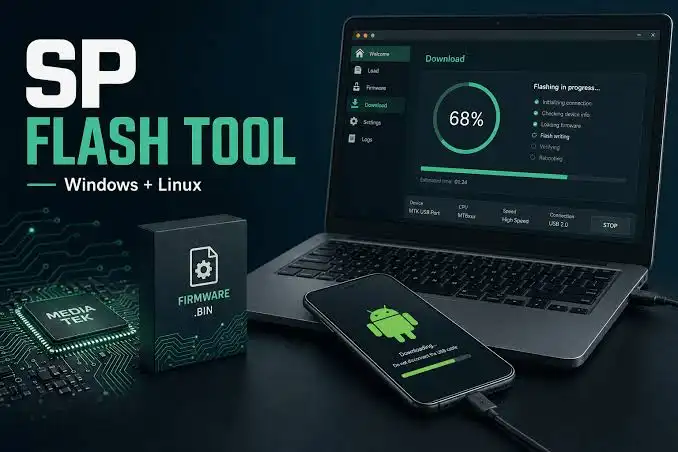
Whether you are learning about MediaTek firmware for the first time or troubleshooting an unsuccessful flash, start by confirming that the tool actually supports your device.
What Is SP Flash Tool?
SP Flash Tool, also called Smart Phone Flash Tool, is a computer utility used for certain low-level firmware operations on compatible MediaTek-based devices. It can communicate with supported device interfaces and write firmware images to designated storage partitions. Depending on the tool release, chipset, firmware package, and security configuration, it may also support operations such as firmware upgrades and memory readback.
SP Flash Tool is commonly discussed in Android repair communities because some compatible phones can communicate with a computer while powered off, without first loading the Android operating system. This can be useful when normal software recovery options are unavailable. However, SP Flash Tool is not compatible with every Android phone, and it cannot repair every type of device failure. A MediaTek processor alone does not guarantee that a particular tool release or firmware package will work.
What is SP Flash Tool used for?
Common applications include:
Stock firmware installation: Writing compatible factory firmware images to supported partitions.
Software recovery: Attempting to restore certain devices affected by corrupted firmware or failed updates.
Firmware upgrades: Applying a supported firmware package using the appropriate procedure.
Partition-level operations: Working with selected storage partitions where supported.
Memory readback: Reading designated storage regions for certain diagnostic or backup tasks.
Repair troubleshooting: Investigating software-related startup problems when ordinary Android tools are unavailable.
These operations are not interchangeable. The correct procedure depends on the device’s firmware layout, security protections, and service documentation.
Popular Key Features of SP Flash Tool

1. Firmware flashing
The tool can write compatible firmware images to a supported MediaTek device. This is useful when a documented repair procedure requires reinstalling the operating system or restoring selected partitions.
A firmware package may contain images for components such as the boot image, system software, recovery environment, and other device-specific partitions.
Not every package includes every component, and not every component should be flashed independently.
2. Scatter file support
Many SP Flash Tool V5 workflows use a scatter file, usually a text file whose name resembles. The scatter file describes the firmware’s partition layout and associates image files with their intended storage locations. It helps the utility interpret the package, but it does not contain the entire operating system.
Using a scatter file from another model or modifying partition information without understanding the device can cause serious compatibility problems.
3. USB communication
SP Flash Tool communicates with compatible hardware through a USB connection. Depending on the device and computer, appropriate MediaTek drivers may be required.
On Windows, driver problems can prevent the computer from recognizing the phone’s preloader or other supported interface. A reliable data cable and a working USB port are also important.
4. Firmware verification
Supported workflows may perform checksum, image-integrity, signature, or authentication checks.
These checks help prevent incompatible or unauthorized images from being installed. A verification failure should be investigated rather than automatically bypassed.
5. Readback operations
Some configurations allow selected memory regions to be read from a device. This may help with diagnostics or preserving specific data before a repair.
Readback is not necessarily a complete device backup. Its usefulness depends on the data captured, access permissions, storage layout, and whether a documented restoration method exists.
SP Flash Tool V5 vs. V6
Choosing a version requires attention to the firmware package, not just the version number.
| Comparison | SP Flash Tool V5 | SP Flash Tool V6 |
| Common workflow | Scatter-based firmware | XML-based workflows in supported releases |
| Configuration | Often uses a scatter text file | May use XML configuration files |
| Device compatibility | Depends on chipset and release | Depends on chipset and release |
| Best selection method | Follow the firmware package’s instructions | Follow the firmware package’s instructions |
| Main precaution | Avoid mismatched scatter files and images | Avoid mismatched configuration files and images |
This comparison describes common workflow patterns, not universal rules for every release.
A newer version is not automatically the best choice for an older device. Likewise, an older version should not be selected merely because a forum post recommends it. Confirm the required release and configuration format from credible, device-specific documentation.
SP Flash Tool Download: How to Choose a Trustworthy File
Download pages often use phrases such as “latest version,” “official release,” and “100% working.” Those phrases are marketing claims, not proof that a file is authentic or compatible.
Where should you look?
Start with the device manufacturer’s support resources or an authorized service source. MediaTek provides resources for supported development platforms, but it should not be treated as a universal download page for every consumer smartphone.
If you obtain the utility from a third-party archive, verify the source and check any available release information, signatures, or published cryptographic checksums.
Do not assume that a download is official simply because the website uses MediaTek’s name or displays a familiar version number.
Download safety checklist
Before running a downloaded package:
- Confirm that the package is intended for your operating system.
- Review its source and available release information.
- Scan the archive and extracted files with reputable security software.
- Compare the SHA-256 checksum with a trusted published value, if available.
- Extract the package into a dedicated folder.
- Avoid unfamiliar installers, bundled applications, and instructions to disable security protection.
- Keep a record of the version you used if you need to troubleshoot later.
A checksum can help establish that a file matches a trusted reference. It cannot establish authenticity if the reference itself comes from an untrustworthy source.
Is SP Flash Tool free?
SP Flash Tool is commonly distributed as a free utility. Nevertheless, users should verify the legitimacy of the specific download rather than assume every website offering it is authorized.
A paid download service is not automatically fraudulent, but payment alone does not establish that a package is genuine, safe, or suitable for a particular device.
System Requirements and Preparation
Before attempting a firmware operation, confirm that the computer, phone, and firmware package are compatible.
What you may need
- A computer running an operating system supported by the chosen release.
- A compatible SP Flash Tool package.
- Firmware for the exact phone model and relevant hardware variant.
- The correct scatter or XML configuration file.
- Appropriate USB drivers, if required.
- A reliable USB data cable.
- Sufficient battery charge where the device’s procedure requires it.
- A backup of important personal data.
- Any required manufacturer-provided authorization files or service instructions.
- The exact requirements differ between devices and software versions. Do not assume that every release supports the same operating systems or firmware formats.
Why the exact model matters
Phones that look identical may use different chipsets, regional configurations, storage layouts, or firmware builds. Even small differences can affect compatibility.
Check the full model identifier, hardware revision where relevant, and firmware build information before proceeding. A ROM described as being for a similar model is not necessarily interchangeable.
If you cannot establish that the firmware matches your phone, stop rather than test it on the device.
How to Use SP Flash Tool?
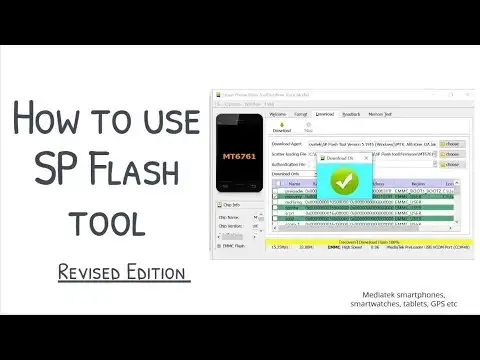
The following steps describe a general workflow for compatible devices. They are not a universal flashing recipe: the correct sequence and available options depend on the specific phone and firmware package.
Step 1: Back up important information
Save your photos, documents, contacts, and other important data somewhere separate from the phone.
Some firmware operations erase user data, and destructive partition operations can affect device-specific information. If the phone still boots, use its normal backup facilities before attempting low-level repair.
Step 2: Prepare the tool and drivers
Extract the verified SP Flash Tool package into its own folder. Install appropriate drivers if the device and operating system require them.
If the computer cannot recognize the phone, resolve the connection problem before attempting to write firmware.
Step 3: Load the correct firmware configuration
Follow the instructions for your firmware package and tool release.
In a compatible V5 workflow, this often involves selecting the scatter file. Supported V6 workflows may use XML-based configuration.
Do not combine a configuration file from one firmware package with images from another.
Step 4: Review the partition selection
Check which partitions the utility has selected and which image files are assigned to them.
Take particular care with low-level components such as the preloader. Flashing an unsuitable preloader can prevent normal startup or make subsequent recovery more difficult.
Do not select additional partitions simply because they are available. Follow the documented procedure for your exact device.
Step 5: Choose the documented flashing mode
SP Flash Tool may offer options such as Download Only, Firmware Upgrade, and Format All + Download.
Their consequences differ, and the safest choice depends on the repair procedure. Formatting should never be treated as a routine first response to a flashing error.
Step 6: Connect the phone
Follow the manufacturer’s procedure for entering the supported connection state. Some workflows require the phone to be powered off before connecting it, while the exact button sequence can vary.
Wait for the tool to recognize the device and report its progress. Avoid interrupting the connection while data is being written.
Step 7: Confirm the result
Wait for the utility to report completion before disconnecting the device as instructed.
The first boot after firmware restoration may take longer than usual. If the phone still fails to start, verify the firmware, model identifier, selected partitions, and reported error before trying anything else. Repeatedly flashing different ROMs without identifying the cause can make the problem worse.
Understanding SP Flash Tool Flashing Modes
| Mode | General purpose | Risk to consider |
| Download Only | Writes selected firmware images | Incorrect images or partition selections can still cause failures |
| Firmware Upgrade | Applies a supported firmware-upgrade procedure | May change partition information or erase data |
| Format All + Download | Formats supported storage areas before writing firmware | Can erase important device-specific data and complicate recovery |
| Readback | Reads selected memory regions on supported configurations | Does not guarantee a complete or restorable backup |
The exact behavior and availability of these modes vary by release and device.
Which mode is best for beginners?
There is no single best mode for every phone. Download Only may be suitable for a documented procedure targeting selected partitions, while Firmware Upgrade may be needed for a supported firmware update.
Format All + Download is especially destructive and should not be used simply because another mode failed. If the instructions for your device do not clearly identify the appropriate operation, seek device-specific service guidance before proceeding.
Common SP Flash Tool Errors and Solutions
Error messages often provide clues about the underlying problem. They do not always identify one definitive cause, so troubleshooting should start with the least destructive checks.
A community-maintained SP Flash Tool error-code reference on GitHub lists examples of connection, scatter-file, storage, and authentication errors. Treat community recommendations as diagnostic leads rather than guaranteed fixes.
SP Flash Tool is not detecting the phone
Possible causes include:
- Missing or incorrect USB drivers.
- A faulty cable or USB port.
- An unsupported connection procedure.
- Device-specific security or authentication requirements.
What to do: Try a known-good data cable and USB port, then check the operating system’s device manager for driver errors. Confirm the connection procedure in the device documentation before changing other settings.
Scatter file error
A scatter-file error may indicate an incorrect configuration file, a damaged package, an unsupported format, or a mismatch between the firmware and device.
What to do: Recheck the complete model identifier and obtain a clean firmware package from a trustworthy source. Do not edit partition addresses to force the utility to accept a file unless an authoritative device-specific procedure explicitly requires that change.
Download Agent or authentication error
These errors can occur when the selected Download Agent is incompatible, the required authorization file is missing, or the device restricts unauthorized flashing.
What to do: Consult the firmware package’s instructions and the manufacturer’s supported service procedure. Use only the appropriate authorization files.
A security restriction is not necessarily a software fault. Avoid trying random DA files or bypass techniques.
Checksum or signature error
A checksum failure can indicate file corruption, an image mismatch, or a failed integrity check.
What to do: Verify the package’s source and integrity, then obtain a fresh copy if necessary. Do not disable signature or integrity protections merely to force the operation to continue.
Firmware compatibility error
A compatibility error can result from a ROM intended for a different device, a partition-layout mismatch, or unsupported hardware.
What to do: Check the exact model, hardware revision, and firmware build. If the package does not explicitly support your device, do not flash it.
Flashing stops partway through
Possible causes include interrupted USB communication, an unsuitable firmware package, or a device-specific failure.
What to do: Record the full error message and tool version. If the operation has failed, consult the documented recovery procedure before attempting another flash. Do not disconnect a device while an operation is actively writing data unless the process has clearly failed and the appropriate recovery instructions require it.
SP Flash Tool: Myth vs. Fact
| Myth | Fact |
| It works on every Android phone. | It is designed for compatible MediaTek devices. |
| The newest version is always the best. | The appropriate release depends on the device and firmware workflow. |
| A successful download means the ROM is safe. | The ROM must be authentic and compatible with the exact model. |
| Formatting fixes every flashing error. | Formatting can erase data and make recovery more difficult. |
| It can recover every bricked phone. | Hardware damage and security restrictions can prevent recovery. |
| Flashing always preserves personal files. | Some operations erase user data or device-specific information. |
Understanding these distinctions can prevent unnecessary data loss and reduce the risk of turning a recoverable software problem into a more complicated repair.
EEAT: What Makes a Reliable SP Flash Tool Guide?
Technical content is more trustworthy when readers can verify how its claims were established.
A genuinely authoritative article should include:
Documented testing: Real screenshots and test notes identifying the tool version, device model, and firmware build.
Verifiable downloads: Source information and checksums where reliable references exist.
Technical references: Links to manufacturer documentation and authoritative Android development resources.
Clear limitations: An explanation of which procedures have not been tested and which devices may require professional service.
Responsible troubleshooting: A distinction between basic connection checks and destructive operations.
Conclusion:
SP Flash Tool can be useful for firmware maintenance and recovery on compatible MediaTek devices, but a successful repair depends on more than the software itself. The correct firmware, configuration files, USB drivers, flashing mode, and device security requirements all matter. Before starting, verify your exact phone model, check the firmware source, back up your data, and understand the consequences of the selected operation. If an authentication or compatibility error occurs, investigate its cause rather than forcing the process with unrelated files or destructive settings.
Your next step: confirm that your phone and firmware package are compatible, then consult the relevant manufacturer or developer documentation before downloading and flashing anything. As MediaTek hardware and security requirements change, keep this guide updated with verified release information and genuine device-testing results.
Frequently Asked Questions
1. What is SP Flash Tool used for?
SP Flash Tool is a desktop utility for supported MediaTek devices. It can write compatible firmware images, perform certain firmware upgrades, and read selected memory regions where supported. Its capabilities depend on the device, firmware package, software release, and security restrictions.
2. Is SP Flash Tool compatible with all Android phones?
No. SP Flash Tool is intended for compatible MediaTek devices, not every Android phone. Phones with other chipsets generally require different tools and procedures. Even MediaTek devices may require specific firmware, configuration files, or manufacturer-approved authorization.
3. Is SP Flash Tool free to download?
SP Flash Tool is commonly distributed as a free utility. However, the authenticity of an individual download depends on its source. Prefer credible manufacturer or developer resources, verify available checksums, and avoid unfamiliar installers or download pages that make unsupported security claims.
4. Can SP Flash Tool fix a bricked phone?
It may recover certain software-bricked MediaTek devices when the hardware, firmware, and procedure are compatible. It cannot guarantee recovery from every bootloop, damaged storage component, failed firmware operation, or security restriction. Identify the exact device and documented recovery procedure before proceeding.
5. Does SP Flash Tool erase phone data?
That depends on the operation and device configuration. Formatting and some firmware-upgrade procedures can erase personal data or device-specific information. Back up important files before flashing, and do not assume that a mode will preserve data unless the device-specific instructions confirm it.
6. Why is SP Flash Tool not detecting my phone?
Common causes include missing USB drivers, a faulty cable, an unsuitable port, or an incorrect connection procedure. Some devices also require specific authentication. Check the connection and driver status first, then consult the manufacturer’s instructions before attempting advanced troubleshooting.